Test Real 4K During Your IPTV Trial: Detect Fake Streams
August 29, 2026 · 9 min read
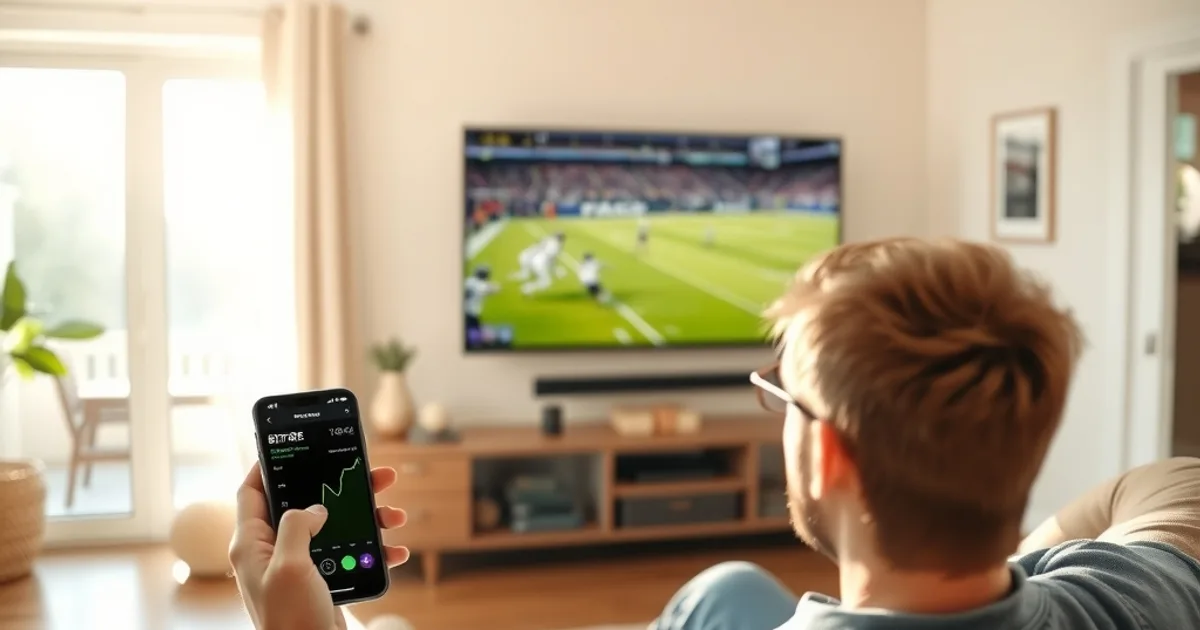
Every IPTV provider's sales page says "4K channels." Almost none of them explain what that actually means at the technical level, and plenty are quietly serving upscaled 1080p or even 720p dressed up with a 4K label on the channel list. The gap between the marketing claim and the pixels actually arriving on your screen is exactly what a free trial exists to close — but only if you know how to measure it.
September 2026 puts this to the test more than any other month on the calendar. NFL is in full swing, CFL is deep into its regular season, and both leagues are exactly the kind of fast-motion, text-heavy broadcast content that separates genuine 4K from a compressed imitation. A July 2026 court order cracking down on pirate streaming sites has also pushed a wave of former illegal-IPTV users toward legitimate trial periods for the first time, and many of them have no baseline for what real 4K should actually look and behave like.
This guide gives you a repeatable, five-part validation routine — bitrate, motion, text sharpness, frame-rate stability, and peak-hour retesting — so you can catch a fake 4K stream during your trial window instead of discovering it three months into a paid subscription.
Why Fake 4K Exists (and Why Trials Matter)
Real 4K video (3840x2160) is expensive to deliver at scale. It demands more encoding power on the server side and more sustained bandwidth per stream than 1080p. When a provider's server infrastructure gets loaded — which happens most during marquee live sports windows — the cheapest way to keep streams from buffering is to silently drop the actual resolution or bitrate while leaving the channel labeled "4K" in the app's guide. The label is metadata the provider controls; the pixels are not something most viewers ever check.
This is not always deliberate fraud in the sense of a single bad actor — some of it is simply undersized server capacity being papered over with generous labeling. But the effect on you is the same either way: you're paying for a tier you're not receiving, and only by testing during the free trial can you tell the difference before money changes hands.
The free trial is the only point in the relationship where you have full leverage. Once you've paid, a provider has little incentive to fix a quality issue quickly. During the trial, a failed test is simply a reason to walk away and try the next provider — which is why the testing methodology below matters more than any spec sheet.
Curious whether a provider's 4K claim would actually hold up on your setup?
The Bitrate Check: Is Your 4K Actually 4K? (Under 12 Mbps = Fraud)
Bitrate is the single most reliable technical signal of real 4K, because resolution alone can be faked by upscaling but sustained bitrate cannot be faked without the picture falling apart. Genuine 4K sports content, even with modern H.265/HEVC encoding, needs a meaningfully higher sustained bitrate than 1080p to hold detail during fast motion. If a channel claiming 4K is holding steady well under that range during live action, what you're watching is upscaled HD — the app is stretching a smaller image to fill a 4K-labeled slot, not decoding genuinely higher-resolution source video.
You don't need specialized hardware to check this. Most IPTV apps that support advanced players (VLC, or the built-in stats overlay in many Android TV IPTV clients) expose a real-time bitrate readout somewhere in a "stats for nerds" or "stream info" menu. Pull it up during a live game, not during a static menu screen, and watch it for two to three minutes of continuous play.
The key habit: check bitrate during actual game action, not during a pre-game studio segment or a commercial break, since those are lower-motion content that compresses efficiently regardless of source resolution and will look deceptively "fine" even on a throttled feed.
If you want to separate a genuine bitrate problem from a network-side bottleneck on your own connection, our guide on detecting ISP throttling during IPTV free trials (/blog/detect-isp-throttling-iptv-free-trial-canada-peak-hours) walks through how to tell the two apart before you blame the provider.
Motion Testing: How Real 4K Stays Sharp (Fast Breaks, Camera Pans)
Static shots lie. A wide shot of a stadium or a paused replay can look sharp on almost any stream, real 4K or not, because there's little detail for compression to struggle with. The tell shows up the moment the camera moves or the action speeds up: a fast break in basketball, a breakaway in hockey, or a wide camera pan following a running back downfield.
On genuine 4K, fast motion retains edge definition — you can still make out grass texture, crowd detail in the background, and clean player outlines as they move. On upscaled or bitrate-starved 4K, motion is where the illusion collapses: edges smear, backgrounds turn to mush, and the picture briefly looks closer to a compressed 720p stream than anything resolution-native.
Run this test specifically during a live CFL or NFL broadcast rather than a replay or highlight package — live production uses more camera cuts and faster pans than taped content, which stresses the encoder harder and exposes weaknesses faster.
Text & Detail Sharpness: Tickers, Jersey Numbers, Score Overlays
Text is one of the most unforgiving tests for fake 4K because it has hard, high-contrast edges that either render crisply or don't. Look at the score bug in the corner of the screen, the scrolling ticker if the broadcast has one, and small print like sponsor logos on the field or broadcast graphics. On real 4K, these elements are legible and clean even when small. On upscaled content, text edges show soft haloing or slight blur, because the source resolution simply didn't contain that level of detail to begin with — no amount of upscaling can recreate information that was never captured.
Jersey numbers are an especially good real-world test during football and hockey broadcasts because they combine motion and fine detail at the same time. Pause on a moment where a player is moving at moderate speed and check whether the number stays readable or turns into a blurred blob. A genuine 4K feed holds that detail through motion far better than an upscaled 1080p source.
This is also where side-by-side app comparisons matter — some players render the same stream with visibly different sharpening or scaling behavior. If you're testing more than one client during your trial, our IPTV app comparison for Canadian viewers (/blog/iptv-app-comparison-canada-smarters-tivimate) covers how TiviMate and IPTV Smarters handle playback differently, which can affect what you're actually judging.
Frame Rate Stability: Detecting Drops & Stutters During Peak Hours
Resolution and frame rate are separate problems, and a stream can pass a sharpness test while still failing badly on frame delivery. Dropped frames show up as brief stutters or a slight jerkiness during fast pans — the picture looks technically sharp but doesn't move smoothly, which is a server-side sign that the stream isn't being delivered at a consistent rate under load.
The most useful way to catch this is the same stats overlay used for the bitrate check — most advanced players also report a frame-drop counter. A handful of dropped frames over a long viewing session is normal on any streaming service. A frame-drop count that climbs steadily and visibly during the second half of a game, when server load across the provider's network is highest, is a server capacity problem, not a device or Wi-Fi issue.
To rule out your own hardware or network as the cause before blaming the provider, it helps to test picture quality specifically during a live sporting event rather than on-demand content, since live streams put continuous real-time load on the provider's transcoding servers in a way that VOD never does. Our dedicated walkthrough on testing sports stream quality during CFL and hockey broadcasts (/blog/test-iptv-free-trial-sports-quality-cfl-hockey) goes deeper into isolating this specific failure mode.
Peak-Hour Reality Test: Schedule Your 4K Validation Around Live Sports
Every one of the checks above will look better at 2pm on a Tuesday than during a Sunday NFL doubleheader or a Friday-night CFL game, because server load is the variable that exposes fake 4K in the first place. Testing a channel when nobody else is watching tells you almost nothing about how it performs when it matters.
Structure your trial around this deliberately: run your bitrate, motion, and frame-rate checks once during an off-peak weekday afternoon as a baseline, then repeat the exact same checks on the same channel during a marquee weekend broadcast. If the numbers hold steady between the two tests, the provider has the server capacity to back up its 4K claim. If quality visibly degrades only during the high-traffic window, that's the fake-4K pattern in its purest form — the label didn't change, but the server quietly downgraded what it was actually sending.
September's NFL and CFL schedule gives you an unusually good testing window for this, since both leagues run marquee games on overlapping weekend and weeknight slots — plenty of peak-hour opportunities inside a typical 24-to-48-hour trial period.
What You Need to Test: Bandwidth Monitoring Tools & Apps (Canada-Friendly)
You don't need paid software for any of this. On Android-based devices (Android TV, Fire TV, Android phones/tablets), players like VLC or IPTV Smarters expose live bitrate and dropped-frame stats through a long-press or settings-menu overlay during playback. On a computer, VLC's built-in "Media Information" window (Tools menu, Codec/Statistics tab) shows the same data for any stream URL you feed it directly.
For raw network-side confirmation, a basic speed test run on the same device and same Wi-Fi band immediately before and after your stream test tells you whether your own connection has the headroom real 4K requires, which matters in Canada where a portion of households are still on connections shared across multiple streaming devices during evening peak hours.
Which device you're testing on also affects what you can actually verify — some streaming boxes don't expose stats overlays at all. If you're deciding what to test on in the first place, our device comparison for IPTV trials (/blog/iptv-free-trial-device-comparison-firestick-roku-appletv) breaks down which of Firestick, Roku, and Apple TV give you the most visibility into playback stats during a trial.
Ready to lock in a plan that's already passed the bitrate and motion tests?
What to Do If You Detect Fake 4K (Next Provider Steps)
If your testing shows a channel holding low bitrate, smearing during motion, blurring text, and dropping frames specifically during peak hours, you have your answer: the 4K label isn't backed by the infrastructure to deliver it consistently. The right move is simple — don't convert that trial to a paid plan, and move to the next candidate before your trial window closes.
Keep your test results from provider to provider. A single number in isolation ('12 Mbps') means little without a comparison point, but a running log across two or three trials quickly shows you which provider's 4K claim is backed by real server capacity and which one is just a label on a channel list.
Before committing anywhere, it's also worth confirming the provider itself operates within Canada's legal streaming landscape, since the same server-capacity shortcuts that produce fake 4K are common among unlicensed services trying to cut costs. Our legal and safety guide for IPTV trials in Canada (/blog/iptv-free-trial-legal-canada-safety-guide) covers what to check before you hand over any payment details, free trial or not.
Frequently asked questions
What bitrate should real 4K IPTV actually run at?
There's no single official number since it depends on the encoder (H.264 vs H.265) and the content's motion complexity, but a channel that consistently sits under 12 Mbps during fast-motion live sports while labeled 4K is a strong red flag that you're watching upscaled HD rather than native 4K source video.
Can I test 4K quality without any special software?
Yes. Most advanced IPTV players (VLC, IPTV Smarters, and similar apps) include a built-in stats or stream-info overlay that shows live bitrate and dropped frames without installing anything extra — you just need to know where to find it in the player's settings or long-press menu.
Why does my 4K stream look fine during commercials but blurry during the game?
Commercials and studio segments are low-motion content that compresses efficiently even at reduced bitrate, so they mask quality problems. Live game action with fast motion and camera pans is what actually stresses the stream, which is why it's the only reliable moment to test.
Does a dropped-frame counter mean my Wi-Fi is the problem, not the provider?
Not necessarily. Run the same channel test at an off-peak time on the same Wi-Fi; if frame drops only appear during high-traffic viewing windows like weekend NFL or CFL games, the bottleneck is most likely the provider's server capacity under load, not your home network.
Should I test 4K quality on every device I own during the trial?
At minimum, test on whichever device you plan to use most, since some streaming boxes apply their own upscaling or sharpening that can mask or exaggerate quality differences. If you're still choosing hardware, comparing playback stats across devices during the trial period is worth the extra time.