Test Your IPTV Free Trial for Sports: CFL & Hockey Quality Checklist
August 9, 2026 · 9 min read
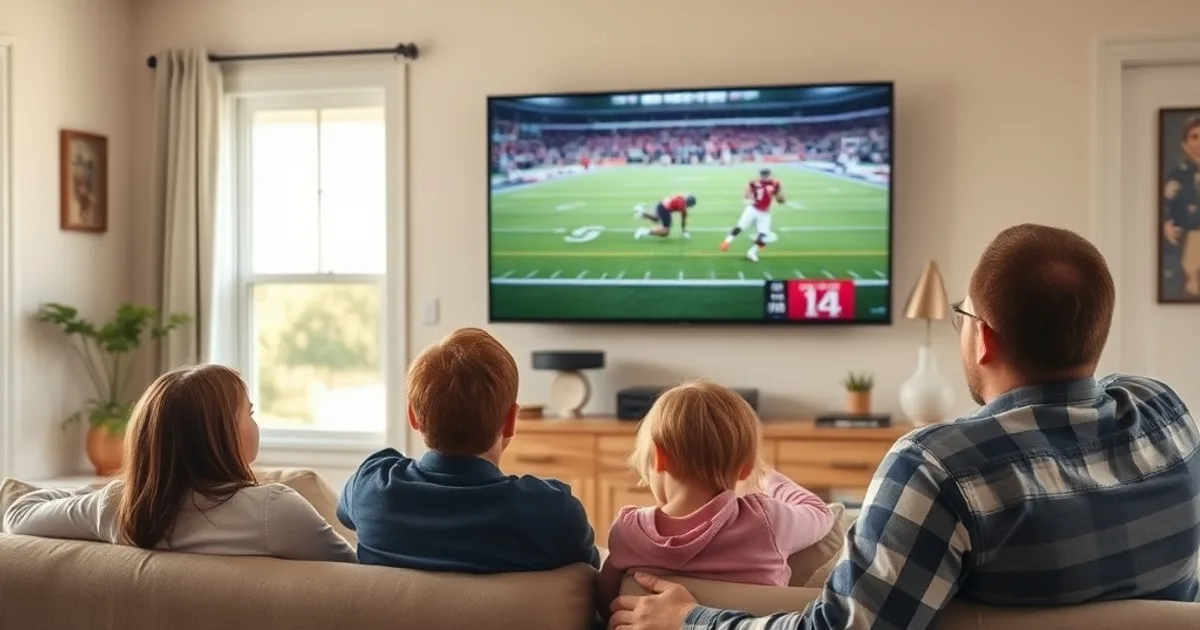
CFL season is in full swing, with games nearly every weekend through August, and NHL preseason ramps up in September — which makes right now the single best window all year to actually test an IPTV free trial against real sports load instead of a quiet Tuesday afternoon rerun. Sports is the harshest test IPTV has to offer: constant motion, fast pans, sold-out simultaneous viewership, and zero tolerance for a three-second freeze during a two-point conversion.
Most comparison articles tell you which provider claims the best channel list. Almost none tell you how to verify a trial is actually good at sports before you hand over a payment method. This guide gives you a concrete testing method: what to watch, what to measure, how to tell a bad ISP from a bad IPTV server, and a simple rubric for deciding whether to upgrade, keep testing, or walk away.
If your household leans hard into CFL Saturdays and hockey nights, treat your free trial window as a lab, not a preview. Below is exactly how to run that lab.
Why Sports Streaming Is the Ultimate IPTV Trial Test
Live sports punishes a streaming setup in ways on-demand content never does. A movie buffers once and you barely notice; a live broadcast that buffers for even two seconds during a kickoff return is a completely different experience. Sports also forces sustained high bitrate over the length of an entire game — no quiet scenes, no static shots, just constant motion that keeps the codec working at full load.
There's also a load problem that has nothing to do with your home internet: during marquee windows, an IPTV provider's servers are handling their heaviest concurrent traffic of the week. A trial that looks flawless watching a documentary at 2 PM on a Tuesday can behave very differently at 8 PM on a CFL Saturday when thousands of other subscribers are pulling the same feed.
That's exactly why your trial period should be spent watching live games, not catalog content. It's the only way to see how the service performs under the specific stress it will face every week you actually care about.
Want a walkthrough for testing your trial on this weekend's game?
Pick Your Test Day: Timing Your Trial Around CFL Games
Don't start your trial on a random weekday. Line it up with a CFL game weekend and specifically test during the evening kickoff window, roughly 8 to 11 PM EST, when Canadian sports viewership peaks. This is when provider infrastructure and your own ISP are both under the most load, which is the whole point of the test.
If your trial period is short, prioritize covering at least one weekend prime-time game and one weeknight game if the schedule allows it — the two often stress different things: weekend windows stress provider server capacity, weeknight games stress your own network alongside general household streaming and gaming traffic.
For guidance on how much runway a given trial actually gives you to plan this around, see how to get an IPTV free trial in Canada without a credit card (/blog/how-to-get-iptv-free-trial-canada-no-credit-card) — timing your signup to land on a game weekend matters more than most guides admit.
The 5-Point Stability Checklist
During a live quarter or period, actively watch for five specific failure signs rather than passively enjoying the game: 1) full freezes lasting more than one second, 2) pixelation or blocky artifacts during fast motion like a breakaway or long pass, 3) audio drifting out of sync with video, 4) frame rate stutter where motion looks choppy rather than smooth, and 5) the stream dropping to a visibly lower resolution mid-play without you touching anything.
Keep a simple tally on your phone: note the game clock time whenever any of these five things happens. A trial that logs zero or one minor blip across a full game is behaving like a real service. A trial that racks up five or more incidents in a single quarter is not ready for your household, regardless of what the channel list promises.
This checklist matters more than a subjective 'did it feel okay' impression, because sports failures are often brief enough to forget by the next play unless you're actively logging them.
4K Sports Test: Does Your Setup Handle Ultra-HD Football?
If the trial offers a 4K or Ultra-HD stream for a game, use it specifically to test whether your combination of internet plan, router, and app can sustain the higher bitrate for a full quarter without the stream silently stepping down to HD. Watch a wide shot of the field during a kickoff — grass detail and jersey numbers are the easiest place to spot compression artifacts at a glance.
4K sports is significantly less forgiving of a marginal connection than 4K movies, because there's no slow scene to let buffered data catch up. If you're testing on a Firestick or smart TV, hardware headroom matters here too — see our setup guide for Firestick and smart TV IPTV configurations for Canadian households (/blog/iptv-free-trial-firestick-smart-tv-canadian-setup) if you suspect the device itself, not the stream, is the bottleneck.
If 4K consistently underperforms while standard HD stays rock solid on the same trial, that's useful information — it tells you to plan around HD for game nights rather than assuming the upgrade path will just work.
Multi-Screen Test: Can Your Trial Handle 2-4 Simultaneous Games?
Sports households rarely watch one screen. Test whether your trial supports multiple simultaneous streams on different devices in your home — one game in the living room, another on a tablet in the kitchen, maybe a third for out-of-market coverage. This is the single most common real-world failure point that a one-device demo never reveals.
Run this test deliberately: start a stream on your main TV, then add a second device, then a third, watching whether the first stream degrades, buffers, or drops entirely as each new connection joins. Some trials cap concurrent streams below what the paid plan allows, so also confirm whether the limit you're seeing is a genuine trial restriction or the actual service ceiling.
If your household regularly splits across two or three screens on game day, this test alone can eliminate a provider faster than any stability check — a service that can't do multi-screen reliably isn't a fit no matter how good the picture looks on a single device.
Peak-Hour Stress Test: TSN/Sportsnet Stability During Live Kickoff
Specifically target the first fifteen minutes after kickoff or puck drop, when viewership across the board spikes hardest as everyone tunes in at once. This narrow window is where weaker IPTV backends show their weakest performance — servers under sudden concurrent load, CDNs catching up, and buffers that haven't stabilized yet.
Compare that opening window against the stream's behavior thirty minutes later, once traffic has leveled off. A healthy service should look roughly the same in both windows. A service that's shaky at kickoff and fine by the second quarter is telling you it struggles specifically with peak concurrent load — worth knowing if you're a family that always tunes in right at the whistle.
For a deeper breakdown of how to separate a provider's peak-hour weakness from your own connection's peak-hour congestion, read our guide on detecting ISP throttling during IPTV free trial peak hours (/blog/detect-isp-throttling-iptv-free-trial-canada-peak-hours).
ISP Throttling vs IPTV Server Failure: Diagnose the Real Problem
This is the step most people skip, and it's the one that actually determines whether switching providers will fix anything. When a stream degrades, the cause is either your ISP throttling streaming-classified traffic, general network congestion, or the IPTV provider's own servers struggling — and each has a different fix.
A practical test: install the Wehe app, which is a free, independently developed tool designed specifically to detect ISP throttling by comparing your connection's behavior on classified traffic versus unclassified traffic. Run it during a period when your stream is misbehaving. Separately, connect through a VPN and reload the same live game — if quality improves noticeably on the VPN, your ISP is very likely the culprit, not the IPTV service.
If the stream still struggles on a VPN with a different exit point, the problem is more likely on the provider's side — server capacity, CDN routing, or the specific channel feed. Don't judge a trial as 'bad IPTV' until you've ruled your own ISP out first; it's the single most common misdiagnosis in this space.
Recording Live Sports During Trial: Test PVR & Playback Quality
If your trial includes a PVR or catch-up feature, use it during a real game rather than testing it on a low-stakes rerun. Start a recording a few minutes into the first quarter, let it run, then play it back the next day and check for the same five stability issues from the checklist above — freezing, pixelation, sync drift, stutter, and resolution drops.
Recorded playback quality doesn't always match live quality on every provider; some compress recordings more aggressively to save storage, which shows up as softer detail or more visible artifacts than what you watched live. If PVR matters to your household — missed games, rewinding a controversial call — this gap is worth catching during the trial, not after you've committed.
Red Flags That Mean This IPTV Won't Work for Your Sports Needs
Certain patterns during your trial should be treated as disqualifying rather than minor annoyances: repeated full freezes during the same recurring moment in every game (suggests a systemic server issue, not bad luck), a channel that simply won't load during peak hours despite working fine off-peak, audio and video drifting out of sync and never correcting itself, and multi-screen support that was advertised but doesn't hold up when you actually test it with real devices.
One bad quarter isn't a verdict — servers have off nights. But a pattern that repeats across two or more separate live games during your trial is a reliable signal, not a coincidence. Trust the pattern over any single incident.
It also helps to run your trial through the broader general checklist for a 24-hour IPTV trial (/blog/24-hour-iptv-trial-what-to-test-before-you-buy) alongside these sports-specific tests, so you're not only evaluating live-game performance but the full picture — apps, on-demand content, and support responsiveness too.
Passed the sports checklist? See the plans built for full-season CFL and hockey viewing.
Decision Rubric: Upgrade, Keep Testing, or Switch Providers
Upgrade if: the five-point stability checklist logged zero or one minor incident across a full game, multi-screen held up with your actual device count, and the peak-hour kickoff window looked the same as the rest of the game. That's a service performing the way it should under real sports load.
Keep testing if: you've only watched one game so far, or you hit an issue but couldn't isolate whether it was your ISP or the provider using the throttling test above. One data point isn't enough to commit or reject — get at least two live-game sessions in before deciding, ideally across a weekend and a weeknight.
Switch providers if: the same failure pattern repeats across multiple games, multi-screen fails outright with your normal device count, or the VPN test confirms the problem sits with the provider rather than your ISP. At that point, more trial time on the same service won't change the verdict — it's time to test a different one.
Also worth checking before you decide: how the apps themselves handle sports specifically, since a stable server feed can still feel unreliable through a poor app. Our comparison of IPTV apps for stability in Canada, covering Smarters and TiViMate (/blog/iptv-app-comparison-canada-smarters-tivimate), is a useful next read if your stream tested fine but the app experience felt rough.
Frequently asked questions
How many games should I watch before deciding if an IPTV trial is good for sports?
Aim for at least two live games during your trial window — ideally one weekend prime-time game and one weeknight game. A single game can have an off night due to server load or a temporary ISP issue, so one data point isn't reliable enough to commit or reject a provider on its own.
My stream is fine on regular channels but struggles during CFL games. What does that mean?
That's a classic peak-load signature — the issue usually isn't your connection generally, it's the provider's servers or CDN struggling under the concurrent traffic spike that live sports specifically causes. Run the ISP throttling test with a VPN to confirm the pattern before ruling the provider out.
Is 4K IPTV worth testing during a free trial, or should I stick to HD?
Test both if the trial offers them. 4K sports is far less forgiving of a marginal internet connection than 4K movies since there's no slow scene to let buffering catch up, so it's a genuinely useful stress test even if you plan to watch in HD day-to-day.
How do I tell if it's my internet or the IPTV provider causing freezes?
Use the Wehe app to check for ISP throttling, and separately reconnect through a VPN and reload the same live game. If quality improves noticeably on the VPN, your ISP is the likely cause. If it's still poor on the VPN, the issue is more likely on the provider's side.
Can I test multi-screen viewing during a free trial?
Yes, and you should — start a stream on one device, then add a second and third on different devices in your home while watching whether the first stream degrades or drops. This reveals concurrent-stream limits that a single-device trial demo never shows.
Does PVR/recording quality on IPTV match the live broadcast?
Not always. Some providers compress recorded content more than the live feed to save storage, which can mean softer detail or more visible artifacts on playback. If recording games matters to you, test it directly during your trial rather than assuming it matches the live stream.